Seedance 2.0 Is Now Live on Aixio — Your Beginner's Guide to AI Video
ByteDance's newest text- and image-to-video model — with built-in ambient and dialogue audio — is ready to use in the Aixio canvas. Here's how to make your first clip.
Published · Aixio
Seedance 2.0 is now live on Aixio. ByteDance's newest video model turns a single sentence — or a still image — into a short, sound-on video, right inside the Aixio canvas. No timeline, no editing software, no learning curve. This guide walks you through it from zero: where to find the model, which settings to choose, and how to write a prompt that actually works.
What is Seedance 2.0?
Seedance 2.0 is ByteDance's latest text-to-video and image-to-video model. It generates short, cinematic clips from a description or a reference image — and, unlike most AI video tools, it renders native audio (ambient sound and dialogue) in the same pass. The motion and the soundtrack arrive together, so there's no separate sound-design step.
You don't need any video experience. If you can describe what you want to see, you can make it.
What you'll need
- A free Aixio account — signing up takes a few seconds.
- An idea for a shot. A single sentence is enough to start.
- That's it. Everything happens in the browser.
Step 1 — Open the canvas and pick the model
Head to the Aixio canvas. Below the prompt box is the model picker — the control that decides what gets made (a video, an image, audio…).
Open it and choose Seedance 2.0. It sits at the top of the list, marked New. The moment you select it, the canvas switches into video mode and the prompt box is ready for you.
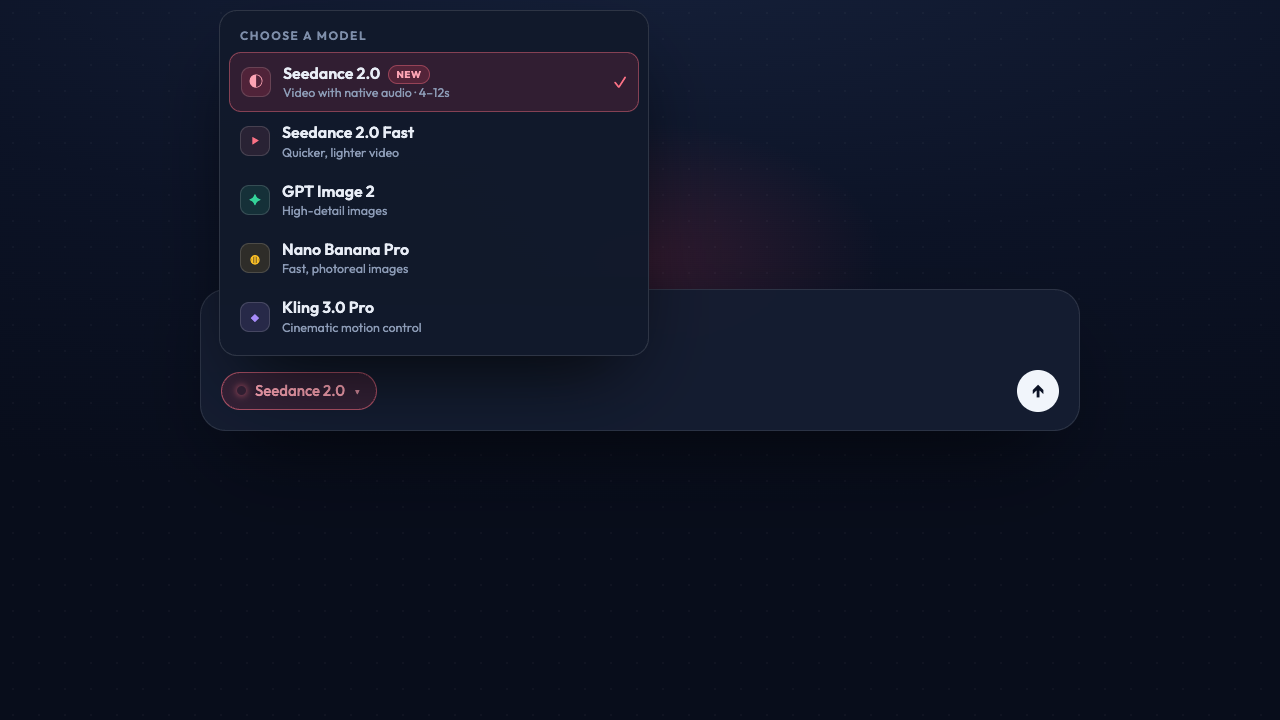
Tip: the picker is also where you'll find Seedance 2.0 Fast (a quicker, cheaper version), plus image models like GPT Image 2 and Nano Banana Pro. You can switch any time — your prompt stays put.
Step 2 — Choose your format and length
Next to the model name are a few small controls. These are all you need — Seedance keeps it deliberately simple:
- Aspect ratio — the shape of your video. Pick the one that fits where it's going:
- 16:9 — widescreen, for YouTube, websites, and presentations.
- 9:16 — tall, for TikTok, Reels, and Shorts.
- 1:1 — square, for feed posts.
- 4:3 / 3:4 — classic and portrait.
- 21:9 — ultra-wide, cinematic.
- Length — how long the clip runs: 4, 5, 8, 10, or 12 seconds. Shorter clips render faster and usually read better on social.
- Audio — leave this on for Seedance's signature native sound (ambience + dialogue). Turn it off for a silent clip.
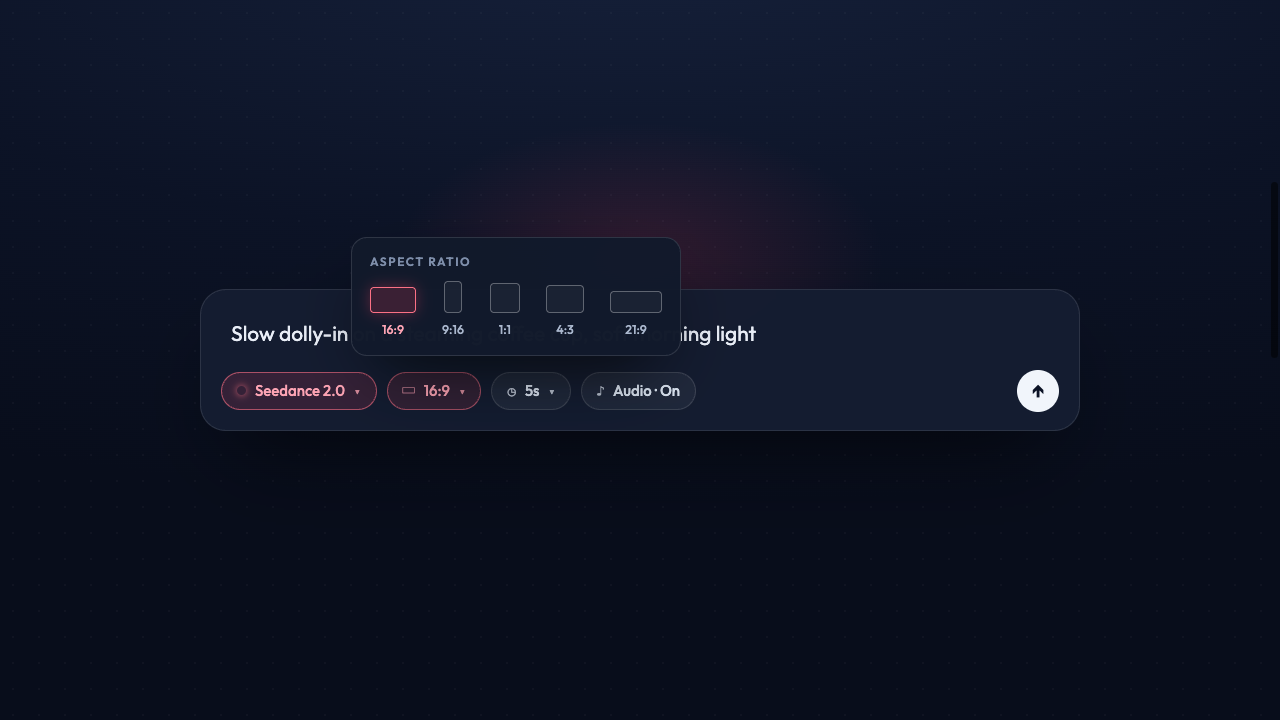
What about resolution? You don't have to set one. Seedance renders in high definition automatically (up to 1080p), so you just choose the shape (aspect ratio) and the model handles the quality. Pick the ratio first — it's the single biggest decision, because reframing later means regenerating.
Step 3 — Write a prompt that works
This is where most of the magic — or the disappointment — comes from. A good prompt is specific. The trick is to describe five things, in plain language:
- Subject — who or what is in the shot. "A red fox."
- Action / motion — what it's doing, and how. "…trots through a snowy pine forest."
- Camera — how the camera moves. "…camera tracking alongside." (Try: slow dolly-in, pan, aerial, handheld.)
- Light / mood — the look. "…at dawn, low golden light."
- Sound — what you want to hear. "…soft crunching snow and distant birdsong."
Put together: "A red fox trots through a snowy pine forest at dawn, camera tracking alongside, low golden light, soft crunching snow and distant birdsong."
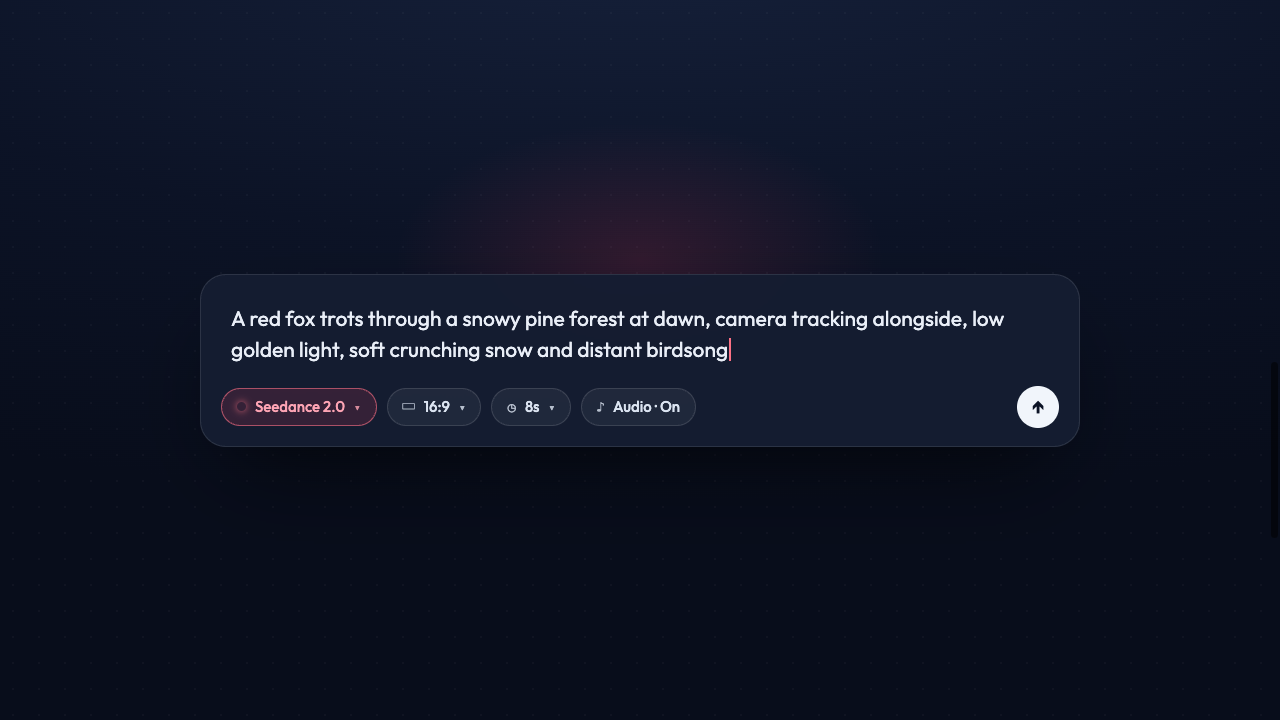
You don't need all five every time, but the more you give, the closer the result. Compare:
- Vague: "a coffee cup" → you'll get a coffee cup, but the motion, light and sound are a coin toss.
- Specific: "slow dolly-in on a steaming coffee cup on a wooden table, soft morning light, gentle café chatter" → a shot you can picture before you even hit generate.
Want spoken dialogue? Just write the line. "A barista smiles and says, 'Your usual?'" — Seedance will generate the voice along with it.
Step 4 — Generate, then refine
Hit the send button. Your clip — with sound — lands on the canvas in moments.
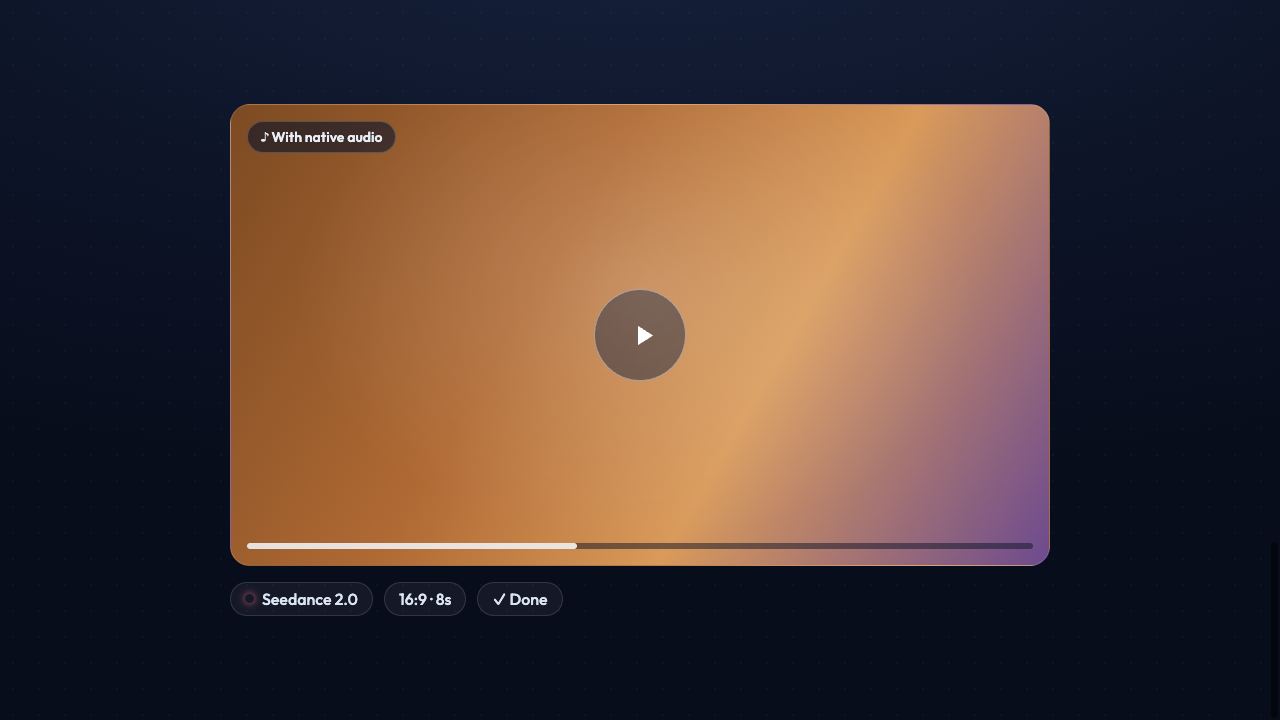
From here you can:
- Refine — tweak the prompt and regenerate until it's right.
- Animate a still — drop in an image as the first frame to bring a photo or a generated frame to life (this is image-to-video).
- Extend — build a sequence of shots into a storyboard for a longer piece.
- Download — export the clip, audio baked in, ready to post.
Aspect ratio cheat-sheet
Not sure which shape to pick? Match it to where the video is going:
- YouTube, website hero, slides → 16:9
- TikTok, Instagram Reels, YouTube Shorts → 9:16
- Instagram / Facebook feed post → 1:1
- Cinematic / film look → 21:9
Three prompts to copy and tweak
New to this? Start from one of these and swap in your own subject:
- "Close-up of raindrops sliding down a window at night, city lights blurred behind, soft rain and distant traffic."
- "Aerial shot flying over turquoise ocean toward a small island, bright midday sun, waves and seabirds."
- "A chef plates a dessert in a busy kitchen, handheld camera, warm light, sizzling pans and quiet chatter."
Tips for the best results
- Be specific about motion. "Slow dolly-in" beats "moving."
- Describe the sound you want. Seedance can render ambience and dialogue — so ask for it.
- Start from an image when you can. Generate a still you love first (try GPT Image 2 or Nano Banana Pro), then animate it for an on-brand result.
- Keep it tight. A punchy 4–6 second clip often reads better on social than a longer one.
- Iterate. Your second prompt is almost always better than your first — and regenerating is fast.
Frequently asked questions
Do I need any video editing experience? No. If you can describe a scene in a sentence, you can make a clip. There's no timeline and no software to learn.
Does Seedance 2.0 include sound? Yes. Native audio (ambience and dialogue) is generated together with the video, in one step.
What length can I make? 4, 5, 8, 10, or 12 seconds.
Which aspect ratios are supported? 16:9, 9:16, 1:1, 4:3, 3:4 and 21:9 — covering widescreen, vertical, square and cinematic.
Do I have to choose a resolution? No — Seedance renders in HD automatically (up to 1080p). You just pick the aspect ratio.
Can I animate an existing image? Yes. Drop an image in as the first frame and Seedance will bring it to life — great for animating a photo, a product shot, or a frame you generated in Aixio.
Start creating
Seedance 2.0 is live in the canvas right now. Open Aixio and make your first clip →