AI Character Reference Sheet: A Step-by-Step Aixio Guide
One character, three angles: a real Skills example with the prompt, settings, original result and a 30-second video.
Published · Aixio
An AI character reference sheet puts one character’s face, hairstyle and outfit in a single place before you start creating scenes. In Aixio, open a character-casting Skill in Canvas, describe your character, and generate one sheet with front, three-quarter and profile views.
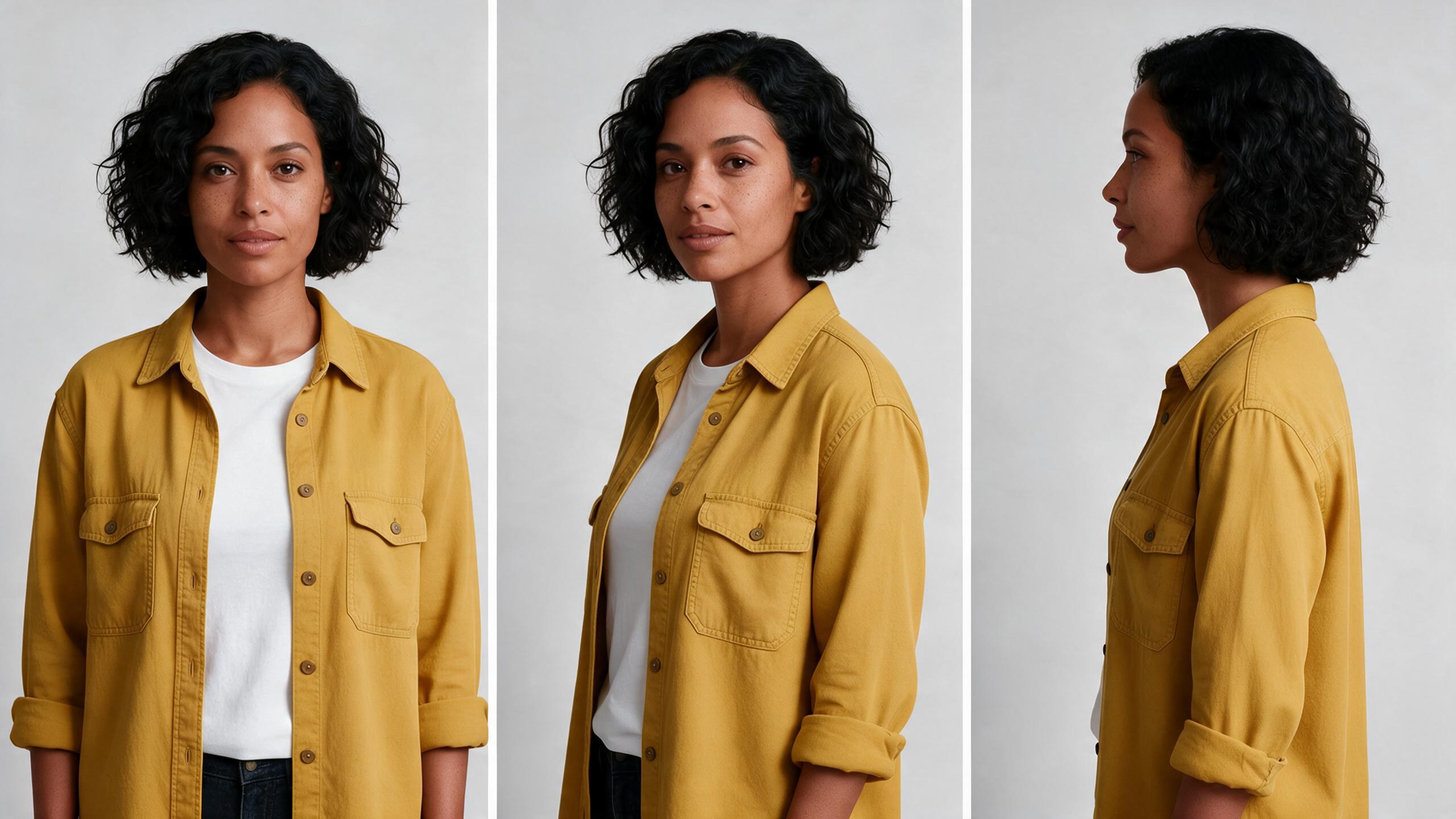
Here is the result from our worked example: Mara, a fictional adult bicycle mechanic, in a mustard overshirt. We made one image, downloaded the original, and checked the three angles. No source portrait was uploaded for this run.
Watch the workflow
Watch the 30-second Aixio Skills character reference tutorial
This 30-second walkthrough uses annotated real Studio captures to show each step: find the Skill, open Canvas, write the brief, check settings, generate and download. Highlights are instructional overlays; generation waiting is omitted. Captions are English, with no voice-over. The complete steps are below.
1. Choose the three-view Skill
Sign in, open Aixio Skills, and search for Character Casting. Open Character Casting · Single Three-View Sheet, then choose Open in canvas. The Skill appears as a chip in the image prompt.
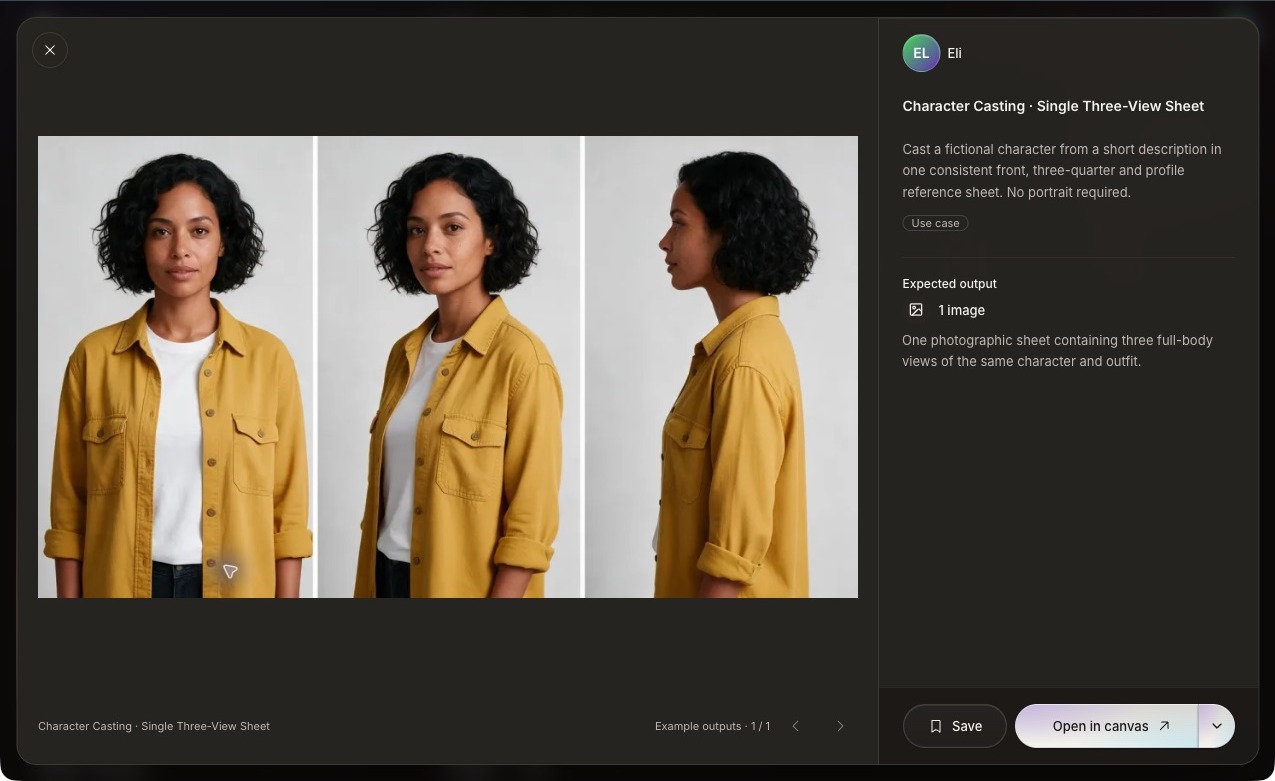
The skill card describes a full-body sheet. For this example, we explicitly requested waist-up framing and received a waist-up result. Always check your output against your own brief, not just the card description.
2. Add a specific character brief
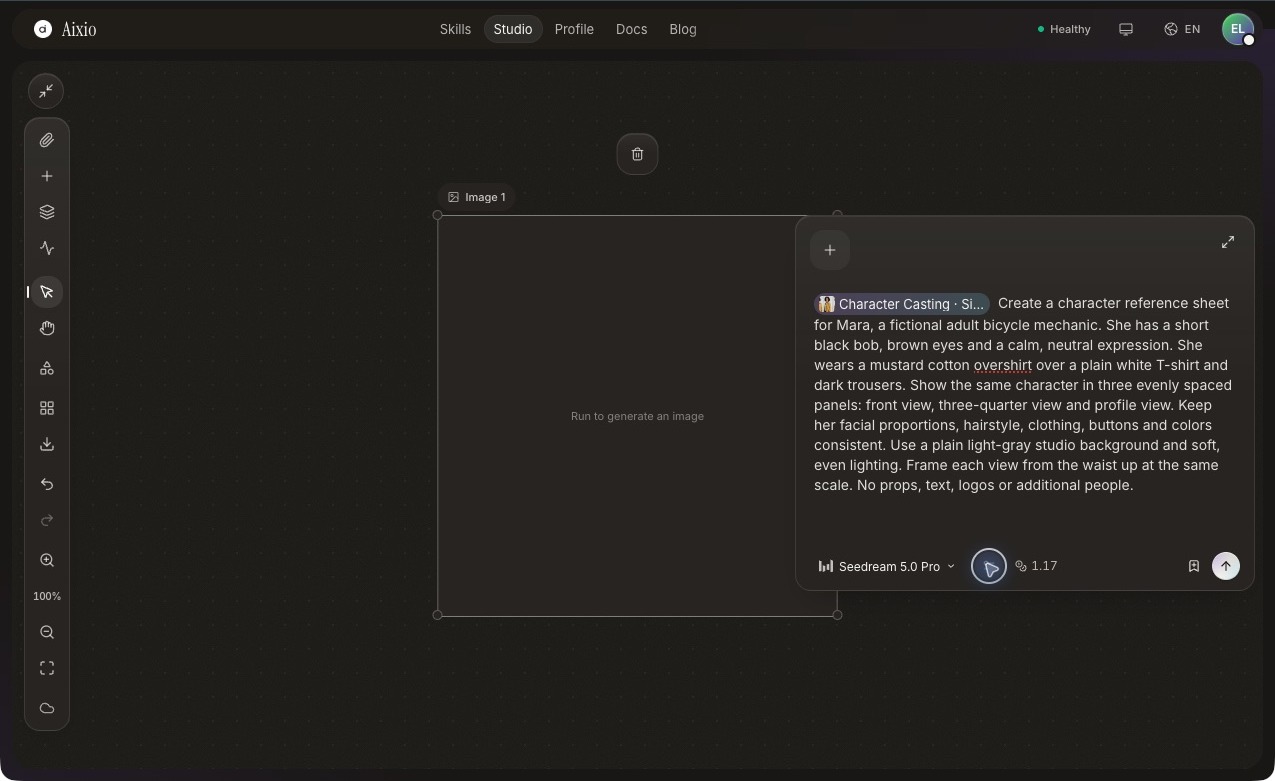
Keep the Skill attached and add this prompt after it:
Create a character reference sheet for Mara, a fictional adult bicycle mechanic. She has a short black bob, brown eyes and a calm, neutral expression. She wears a mustard cotton overshirt over a plain white T-shirt and dark trousers. Show the same character in three evenly spaced panels: front view, three-quarter view and profile view. Keep her facial proportions, hairstyle, clothing, buttons and colors consistent. Use a plain light-gray studio background and soft, even lighting. Frame each view from the waist up at the same scale. No props, text, logos or additional people.
The important distinction is one character from three angles, not three portraits of different people. A neutral background and even light make changes easier to spot. Save dramatic lighting, expressions and locations for the next scene.
3. Check settings, then generate
Our October 3, 2026 run used:
- Skill: Character Casting · Single Three-View Sheet.
- Model: Seedream 5.0 Pro.
- Size: 2K.
- Count: 1.
- Pre-submit estimate: 1.17 credits.
- Downloaded output: 2560 × 1440 JPEG, 16:9.
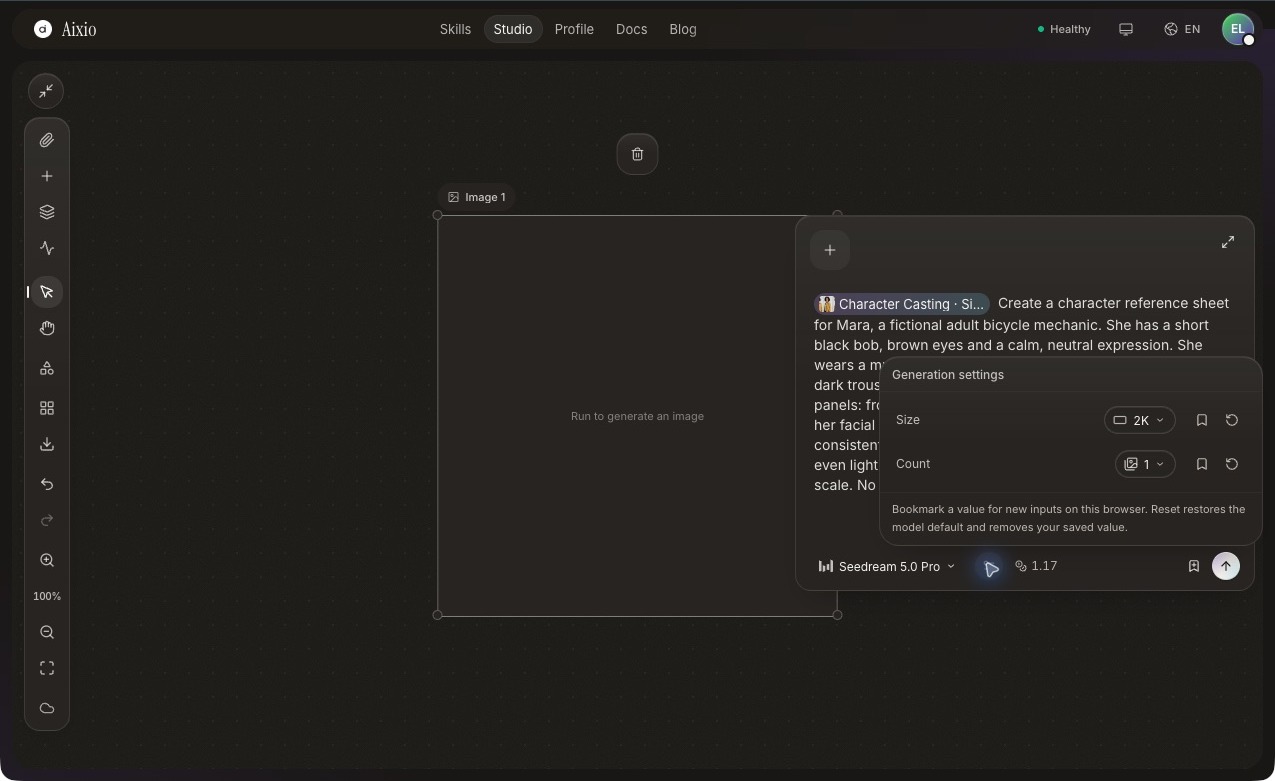
Click Generate once. The price above is the estimate shown for this run, not a verified billing-ledger charge or a permanent price. Check your current Studio quote before submitting. We did not manually select an aspect ratio in this run; 16:9 describes the returned file.
4. Inspect the result, not just the thumbnail
Click outside the prompt panel and use Zoom to fit to compare the full sheet. Then inspect the downloaded original.
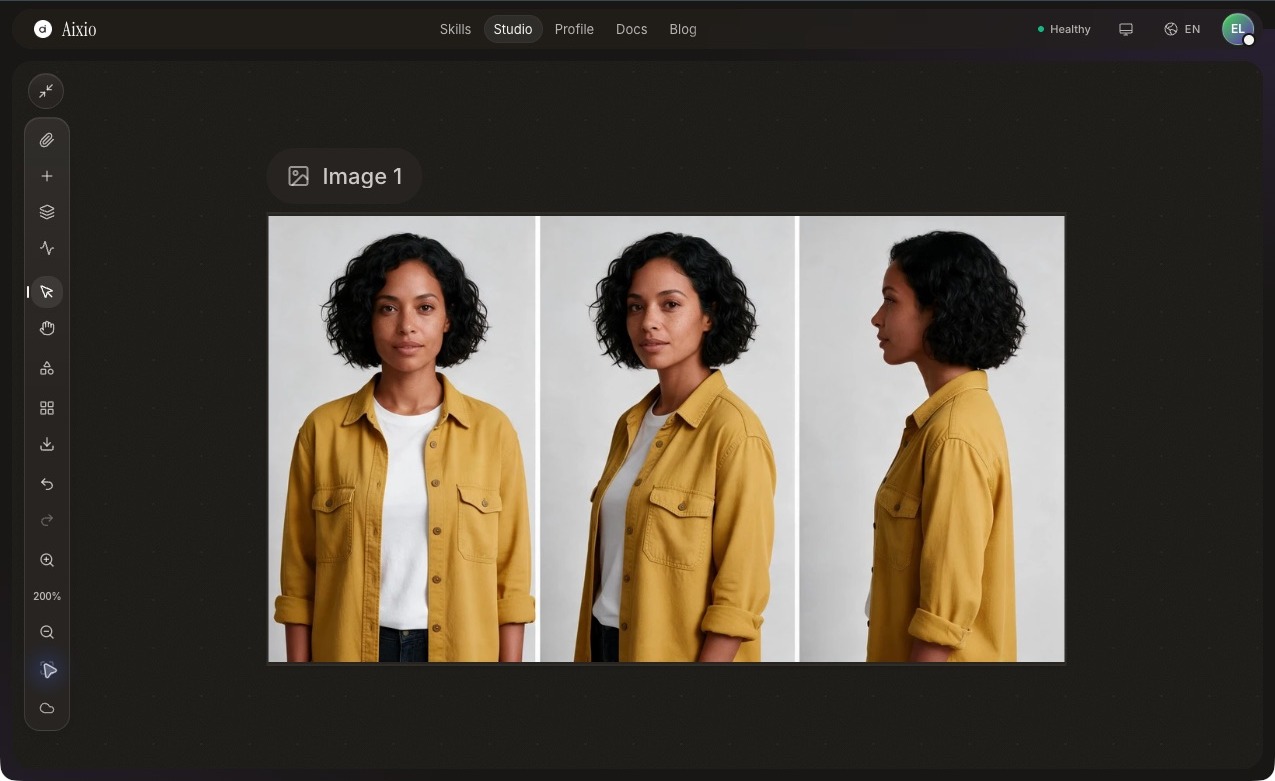
In this output, the first panel is front-facing, the second turns toward three-quarter, and the third shows a clear profile. Short, curly black hair, the mustard collar, white T-shirt and rolled sleeves continue across the views. The head scale and neutral lighting are similar enough to make comparison easy.
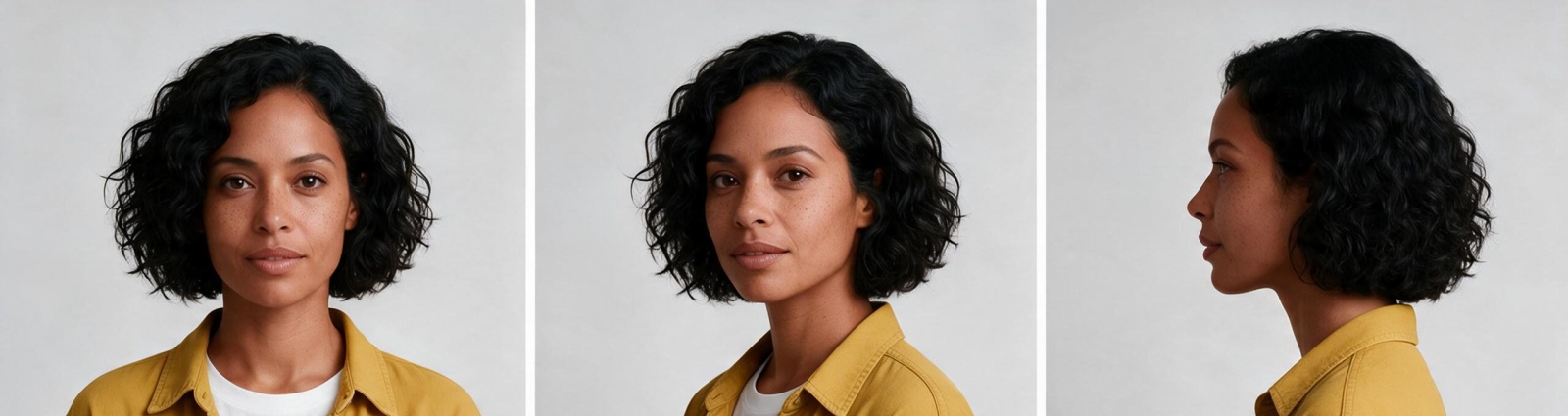
Look closely at the nose, jaw, hairline, collar and pocket placement. This is a useful visual starting point, not proof of perfect identity or garment geometry. Our prompt left hair texture unspecified, and the model chose curls. The waist-up crop does not show shoes, the back of the outfit or enough of the trousers for a full wardrobe check. If you need those details, request them explicitly in a separate sheet.
5. Download and reuse deliberately
Select the image and click Download. Keep the original and prompt together. In a later workflow that supports reference images, attach the sheet and say what must stay fixed and what should change. For example:
Use the attached sheet as the character reference. Keep Mara’s face, short curly black bob and mustard overshirt. Show her beside a bicycle in a quiet workshop with soft window light. Create one scene, not a three-panel sheet.
That follow-up is a suggested prompt, not a second generation tested here. Check every new result for identity drift. For motion planning, see our AI video prompt and sample guide; model-specific reference controls should be checked in Studio before use.
Common questions
Do I need a portrait to make a fictional character sheet?
No portrait was uploaded in this example. We used the selected Skill and a text description. A real person or an already established character may require a reference-image workflow instead.
Does a reference sheet guarantee consistency in later images?
No. It provides a visual reference; the next model and prompt still need testing. This walkthrough demonstrates one three-view sheet, not consistency across independent scenes or video frames.
Why use neutral lighting and multiple angles?
They make facial and clothing details easier to inspect. Runway’s reference guide recommends even lighting and neutral expressions, while Adobe’s workflow guide demonstrates multiple character angles. These are workflow references, not benchmarks of Aixio.
Make your character’s first reference
Open Character Casting in Aixio Skills, replace Mara’s description with your own fictional character, and inspect the three views before building your next scene.